THE CAROUSEL FIELD GUIDE
Design one story.
Publish it in pieces.
A continuous carousel starts as one wide image. Design across the full width, export it once, then cut it into numbered slides.
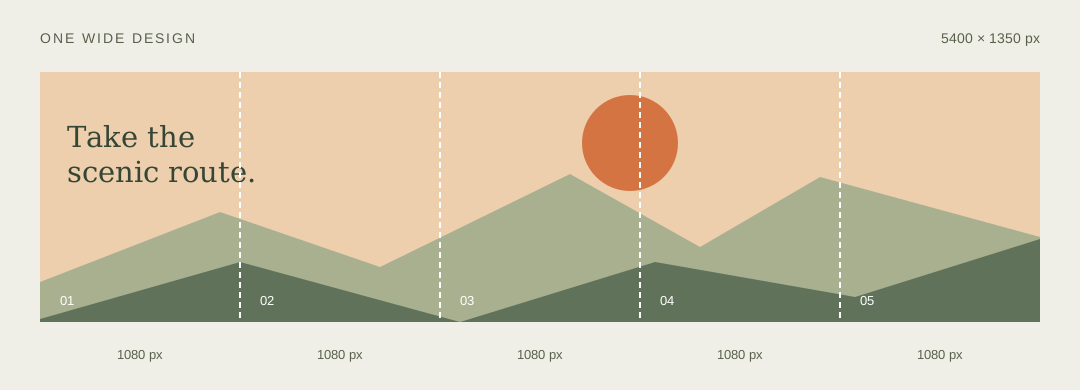
1. Start with the right canvas.
Decide how many slides you want and the size of each one. Multiply the slide width by the number of slides; keep the height the same. For five 1080 × 1350 slides, make your design 5400 × 1350 pixels.
| Slides | Each slide | Full design |
|---|---|---|
| 3 | 1080 × 1350 px | 3240 × 1350 px |
| 5 | 1080 × 1350 px | 5400 × 1350 px |
| 7 | 1080 × 1350 px | 7560 × 1350 px |
These are design examples, not a promise about a social platform's current limits. Check the platform you plan to publish on, especially if it mixes photos and video.
2. Design across the joins.
In Canva or another editor, use one wide page. Mark each 1080-pixel boundary so you can see where the cut will land. Photos, colors and decorative shapes can cross a boundary. Keep important text and faces comfortably inside a slide so they remain readable on their own.
If your design already has separate pages, you usually do not need this tool: download those pages individually. CarouselCut is useful when your finished design is one long image.
3. Export one static image.
Download the full wide page as PNG for text and graphics, or JPG for a smaller photographic file. Keep the intended pixel dimensions and use a static image, not a PDF or animation. The splitter accepts PNG, JPG and static WebP, up to 25 MB and 40 million pixels.
For the current download controls, see Canva's file-type guide. Some size and quality settings depend on your Canva plan.
4. Preview the cuts in CarouselCut.
- Choose your exported image.
- Select Carousel and set the number of slides to five.
- Leave Original selected to divide the source without resizing or cropping.
- Inspect the cut lines, then click the individual pieces to check text near each join.
For a 5400 × 1350 source, five original slides are exactly 1080 × 1350 each. If you select 4:5, 1:1 or 3:4 instead, the tool creates 1080-pixel-wide panels and may crop, pad or resize the source. The preview and crop notice tell you which.
5. Download in order.
Choose Download all · ZIP, then extract the archive. File names include numbered suffixes such as 01, 02 and 03 after the source name. Add them to your post in ascending order. Use individual downloads if your device makes opening a ZIP inconvenient.
Review the draft in your publishing app before posting. A swipe should continue the design from one image to the next, without a missing panel or reversed order.
Split your image →Quick fixes
- Wrong content on an edge? Return to Original if you want no crop. For fixed shapes, use Keep whole image or adjust the crop before exporting.
- One panel is a pixel wider? Your source width is not evenly divisible. Original mode keeps the remainder rather than dropping it. Start with an exact multiple for matching dimensions.
- Text looks soft? Avoid enlarging a small source. Export a larger original from your design app, then split as PNG.
- Your phone cannot export? Browser memory varies. Try a smaller image, fewer pieces or an individual download.
All image processing happens in this browser. The tool does not upload your design or store it for a later visit.